 Talvor
What was different between the two quotes?
Know what to ask next.
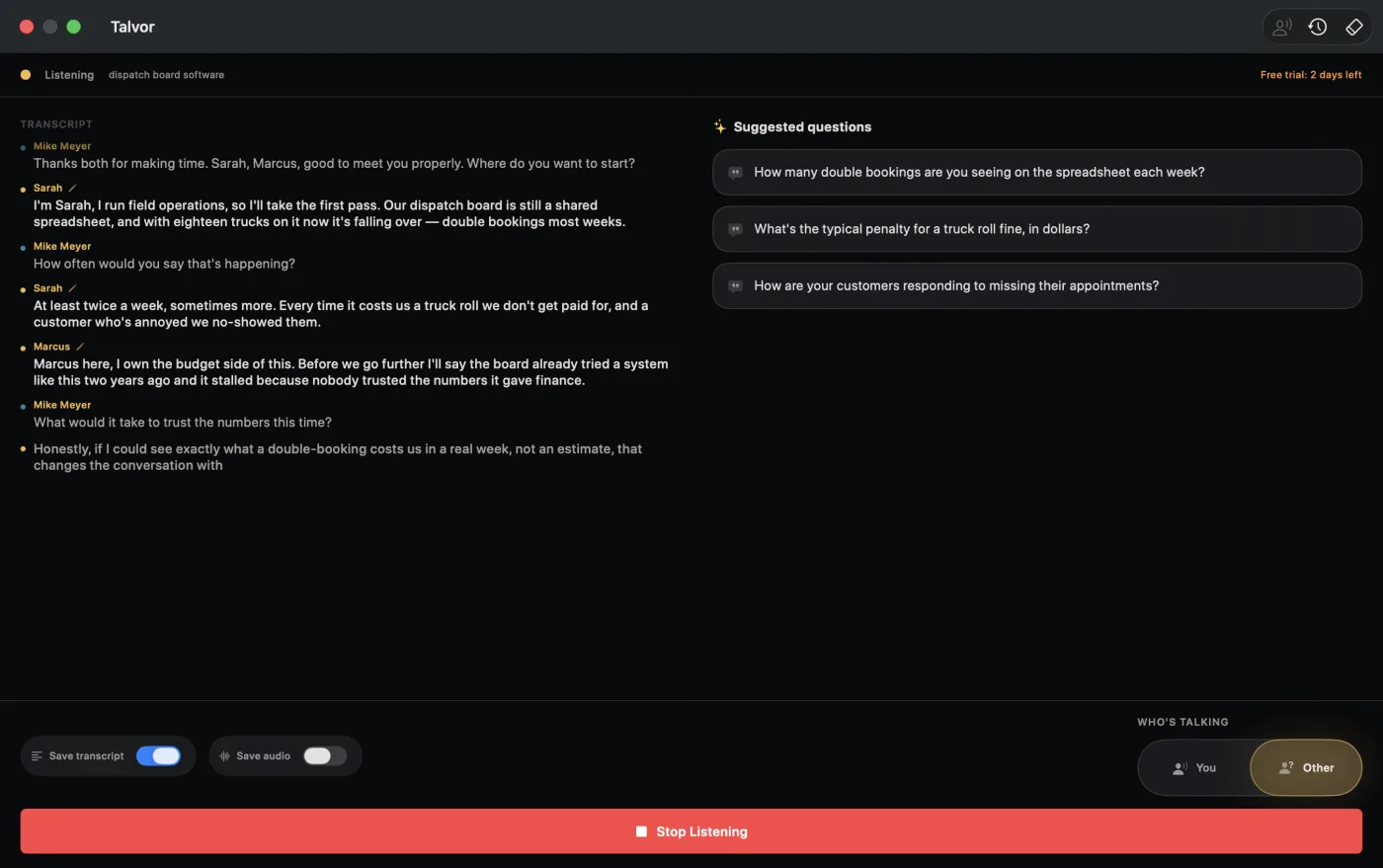
Put your phone on the table, tap Start Listening, and Talvor shows questions built from what the buyer just said, addressed to the person who can answer.
Download on the App Store- iPhone, iPad and Mac
- 7-day free trial
- Needs Apple Intelligence
Sample conversation
Transcript
- YouThanks for having me. What made you call?
- DanaThe roof's twenty years old, and we had two leaks this spring.
- PriyaAnd the last roofer quoted us twice. The numbers didn't match.
- DanaWe'd like it done before the fall rains.
Written for this page. In the app, questions come from what's actually said, and if there's nothing worth asking, it stays quiet.
Where did the two leaks show up inside?
When do the fall rains usually start for you?
On the table, not in the call.
Talvor listens through your device's microphone and transcribes the conversation as it happens. You keep your eyes on the buyer and glance down when you need the next question.
Put it face-up between you
At a kitchen table, a job site or a customer's desk. Enroll your voice once, about 15 seconds, so it knows you from the first word.
Tap Start Listening
Confirm that everyone has consented. The transcript fills in as people speak, and each finished line is heard a second time on the device to correct the words. Stop Listening pauses, New Call ends the call.
Glance at the cards
Once the other side has said about 45 words, up to 3 Suggested questions land, at most every 30 seconds. Tap a card to pin it, swipe it away when you're done. If there's nothing worth asking, it stays quiet. In the US, Canada, Australia and New Zealand you can turn on Cloud questions: a cloud AI model writes them from the conversation text, never audio, and they arrive in a few seconds.
Watch a call from start to finish
Where it works, and where it can't.
Talvor hears the room through the microphone. That's why it works where a meeting bot can't join, and why it can't listen to a call on its own phone.
Where it works
- In person: a kitchen table, a job site, a customer's desk
- Beside a call on speaker on another device: a laptop on Teams, a desk phone, a handset on the table
- When you're only listening in on a meeting
Where it can't
- During a phone, FaceTime, Zoom or Teams call on the same iPhone: the call takes the microphone
- Joining Zoom, Teams or Meet, or capturing call or system audio
- Questions in languages other than English
It knows who said what.
- You and everyone elseEach line is labelled You or another voice, without tagging anything.
- Names from the conversationWhen someone introduces themselves or is addressed by name, their lines take that name, and a question can say "Ask Sarah".
- Easy to fixTap a name to rename a voice, or choose This is me when it hears you as someone else.
Leave with the notes written.
With Talvor Pro, turn on Save transcript or Save audio before or during the call. Afterwards, the call is in Call History, on your device.
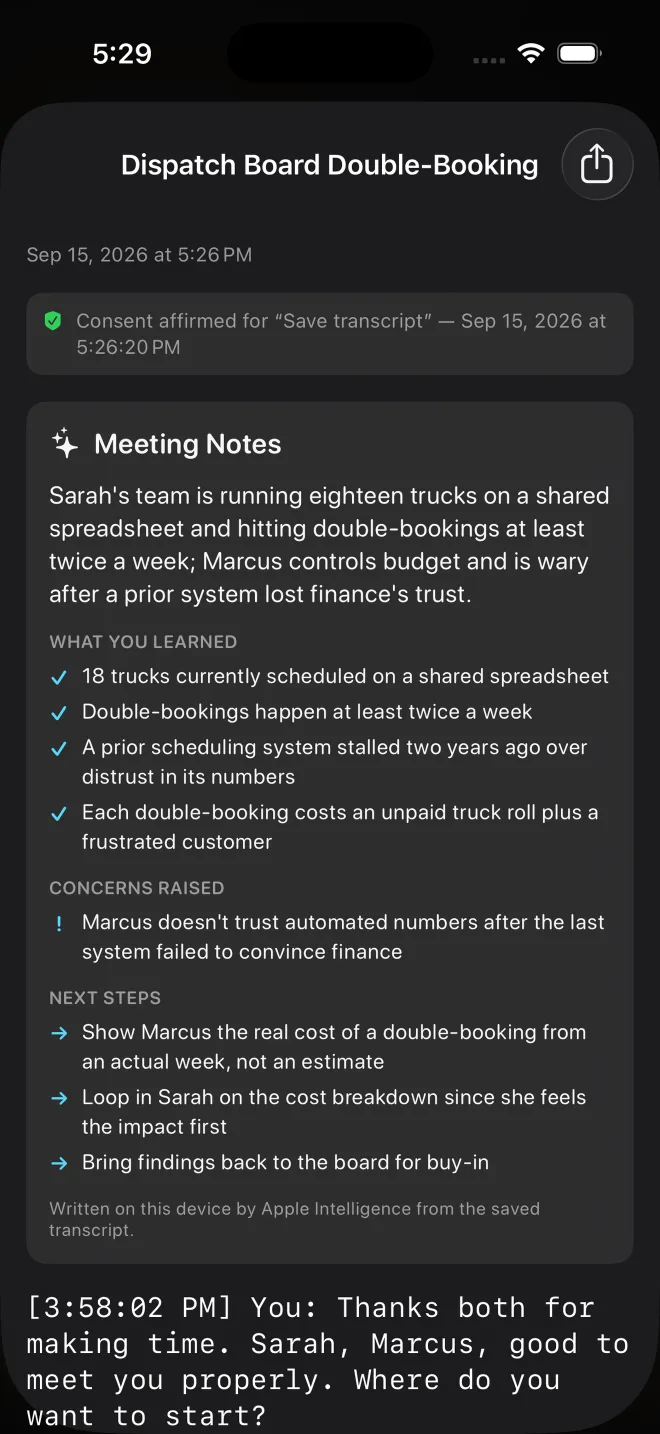
- Meeting NotesOverview, key points, decisions, concerns, and action items with an owner and deadline, written by Apple Intelligence from the saved transcript.
- What you didn't coverThe discovery topics that never came up, each with a question for the follow-up.
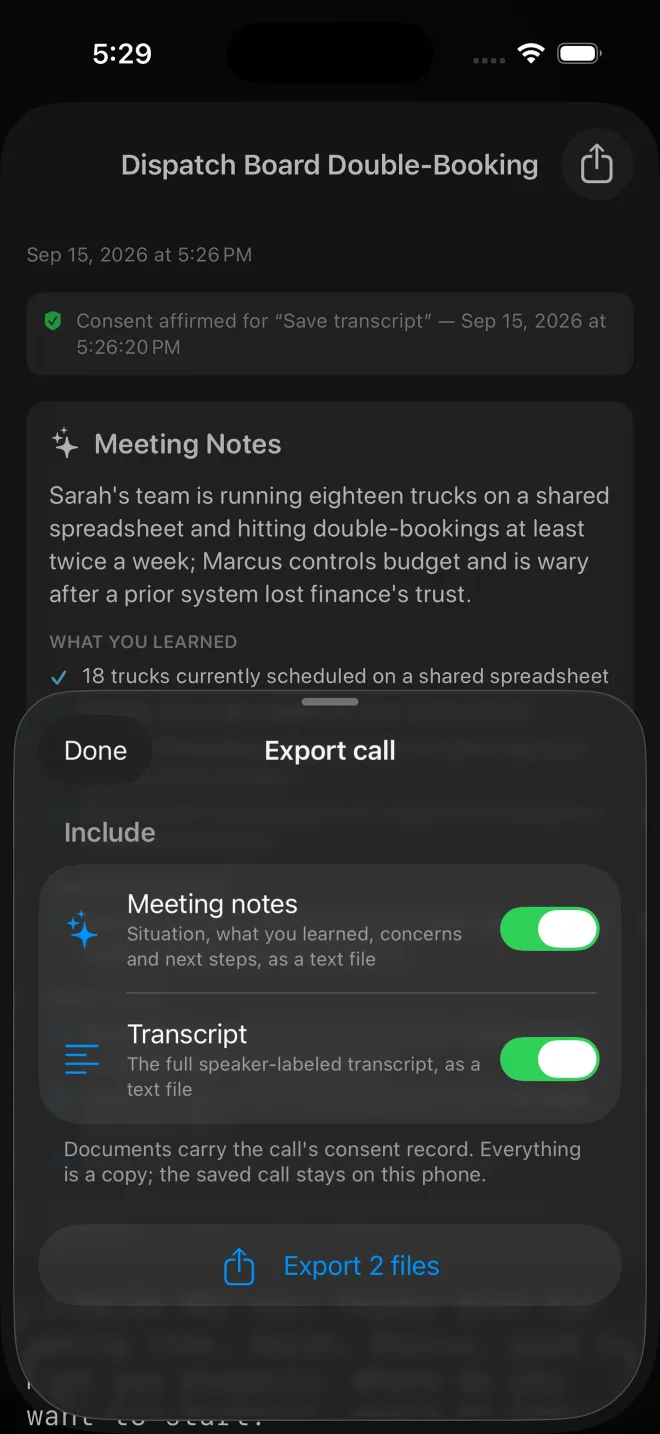
- ExportSend the notes, transcript and audio through the share sheet to Files or Mail, with the consent record attached, and paste the action items into your CRM.
- Call HistoryRename a call to the customer's company and replay the audio.
Your calls stay yours.
What stays on your device
Audio never leaves your device. Saved calls, transcripts and notes are stored only on it, with no account and no sync. Without Talvor Pro, nothing is kept after a call ends.
With Cloud questions off, the conversation stays on your device too. Turn it on (optional; US, Canada, Australia and New Zealand App Stores) and the recent conversation text, never audio, is sent to a cloud AI model to write the questions. Our relay keeps none of it; the AI provider may hold it for up to 30 days and does not train on it. Talvor asks before it turns on.
Talvor downloads its speech and speaker models once, a second speech model over Wi-Fi, and uses the App Store for purchases.
Consent
Before listening starts, Talvor asks you to confirm that everyone has consented, and each saved call keeps a timestamped consent record. It's a reminder, not legal advice: recording laws differ by place.
Guides for the conversation itself.
Free, and useful with or without the app.
Discovery questions for field sales: 22 examples
Build the next question from a cost, a person, a failed attempt or a deadline.
How to ask good follow-up questions
What to listen for, four ways to turn a statement into a question, and worked examples.
Taking notes in an in-person sales meeting
Keep eye contact, then write up decisions, concerns and action items.
Try it on your next call.
Free for 7 days, then Talvor Pro to keep listening. iPhone and iPad with iOS 26.5 or later, Mac with macOS 26.5 or later, with Apple Intelligence turned on. Questions are tuned for English.